





Cost optimization
How to Optimize AWS EBS Costs Without Slowing Apps in 2026

Your AWS bill can hide storage waste in plain sight. An oversized EBS volume, old snapshot copies, or the wrong volume type can raise spend while your apps still run slower than they should.
If you want to optimize AWS EBS well, the goal isn’t the cheapest setup. You want the right fit for each workload, with enough speed for uptime and none of the extra spend that drifts into the bill month after month, ensuring you optimize your EBS.

What Amazon EBS does, and why your storage choices matter
Amazon EBS is persistent block storage for EC2. Your data stays in place when an instance stops, so it’s a common choice for boot disks, databases, container hosts, and line-of-business apps that need attached storage with steady performance.
That mix matters in production because EBS is elastic, durable, and attached to compute. You can grow it, tune it, snapshot it, and keep it close to your EC2 instance. Yet a poor choice cuts both ways: too little performance slows your app, while too much provisioned storage inflates your AWS cost.
A fast mental model helps before you change anything.
| Part of Amazon EBS | What it means for you | How it affects the bill |
|---|---|---|
| EBS volume type | SSD or HDD behavior, plus performance profile | Different rates for gp3, gp2, io2, and st1 |
| IOPS and throughput | How fast the EBS volume can handle reads and writes | Extra performance can add cost |
| Snapshot data | Incremental backup storage | Old backups keep charging |
| Durability and elasticity | Data persists and settings can change | Great for production, but risky when overprovisioned; always review your EBS volume type. |
The short list to review first is simple:
- Your volume type has to match the workload.
- Your provisioned storage should reflect real usage, not guesswork.
- Your snapshot policy should have an owner and a retention rule.
The key EBS features you should know before you change anything
Two numbers matter most in practice when optimizing your EBS: IOPS and throughput for your storage service. IOPS measures transaction speed, while throughput measures how much data moves. Databases often care more about IOPS; log-heavy or batch workloads may care more about throughput.
You also need to remember that an EBS snapshot is incremental. That helps with backup efficiency, but it also means stale copies can build up for months.
How EBS pricing really shows up on your bill
Amazon EBS pricing usually reflects what you provision, not what you touch. If you buy a large general purpose SSD volume and barely use it, the storage bill still lands. The same logic applies to provisioned IOPS, extra throughput, and snapshot storage. For current AWS guidance on storage tradeoffs, see AWS Prescriptive Guidance for EBS.
| Cost driver | Common mistake | Better move |
|---|---|---|
| Provisioned storage | Allocating far more GiB than needed | Right-size your EBS volumes with growth headroom. |
| gp2 or io2 choice | Paying for the wrong volume type | Re-match the workload |
| Provisioned IOPS | Buying peak performance all month | Tune to observed demand |
| Snapshot storage | Keeping every backup forever | Set lifecycle rules |
| Data transfer | Copying snapshots across Regions without review | Use it with intent |
Diagram 1: Workload need -> choose volume type -> provision size, IOPS, throughput -> create snapshots -> monthly bill
See how much you can save on your stack
Pick your team’s tools!
Click to select one or more tools.


What’s your company size?
Just click to select.
What’s your business email?
We'll send you calculations right away
The email is flying to your inbox!
Beyond discounts, you may qualify for up to $100K in AWS credits.

The EBS optimization moves that usually save the most
Most EBS cost optimization work is not glamorous. It is disciplined cleanup, better sizing, and a smarter default.
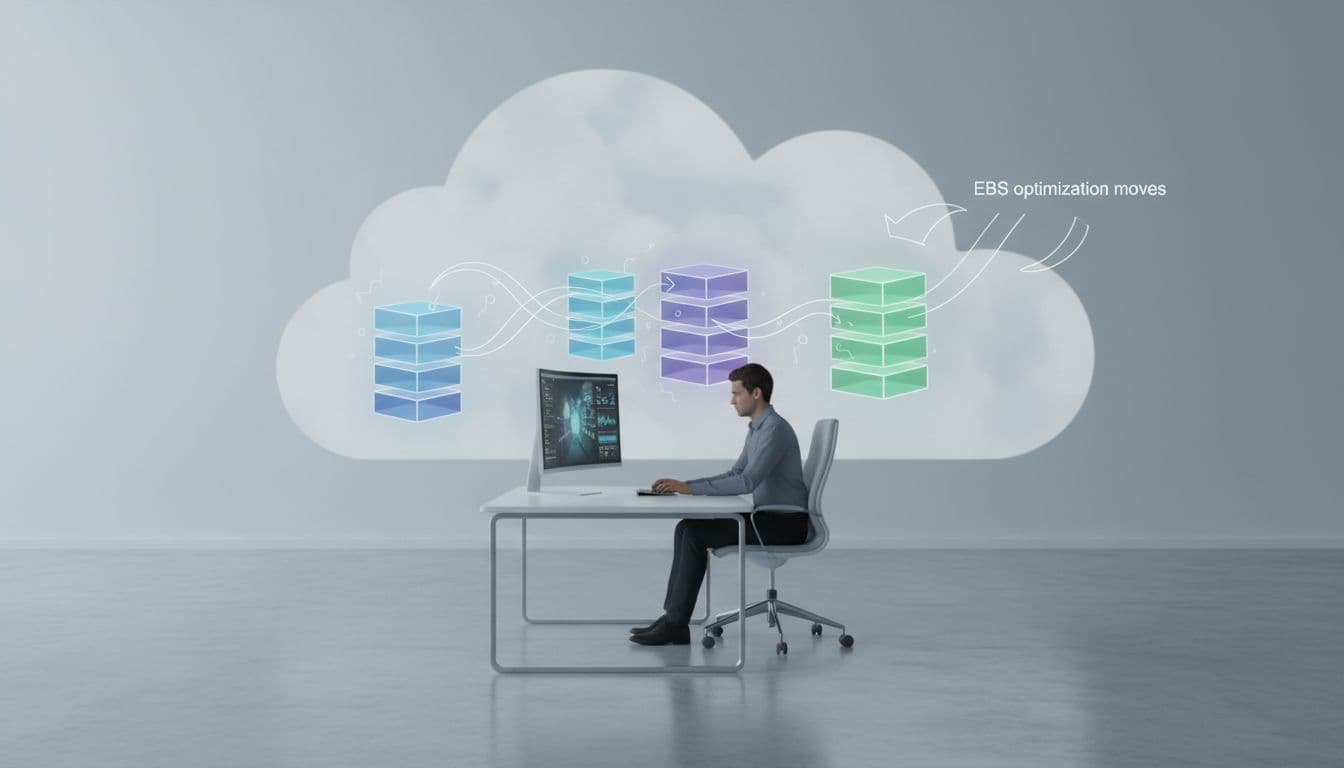
Start by right-sizing volumes instead of guessing
Start with actual usage. Check volume size, used capacity inside the file system, and growth trends over 30 to 90 days. If an EBS volume is 2 TiB and your app uses 400 GiB, you are paying for empty space.
Right-sizing works best when you review:
- average utilization,
- peak periods,
- planned growth for the next quarter.
Choose gp3, gp2, io2, or st1 based on the workload
As of 2026, gp3 remains the best default for many AWS workloads. It gives you general purpose SSD performance with 3,000 baseline IOPS and 125 MiB/s, and you can provision more without buying extra storage. AWS also continues to recommend moving many gp2 volumes to gp3 in its EBS optimization guidance.
| Volume type | Best fit | Pros | Cons |
|---|---|---|---|
| gp3 | Most production apps, boot volumes, mixed workloads | Lower cost than gp2 in many cases, separate storage from performance | You still need to tune settings |
| gp2 | Older general purpose SSD volumes | Familiar, simple | Performance tied to size, often less efficient |
| io2 | Latency-sensitive databases, high provisioned IOPS needs | Strong durability and steady performance | Higher cost |
| st1 | Throughput-heavy, colder data | Good for large sequential access, lower storage cost with the right EBS volume type. | Not for low-latency boot or transactional use |
If you want plain pros and cons, keep this in mind:
- gp3 is usually the right EBS choice for balanced production.
- gp2 volumes are often easy migration targets.
- io2 is worth it only when the workload proves the need.
- st1 fits throughput optimized HDD volumes, not hot databases.
Cut waste by deleting unused volumes and old snapshots
Unattached EBS volumes are one of the easiest wins in AWS cost management. Test environments end, teams forget, and the bill keeps running. AWS has direct guidance on deleting unattached volumes, and the logic is simple: snapshot first if you need a safety net, then delete.
Snapshot cleanup matters too. A standard EBS snapshot, copied often and retained forever, becomes silent storage cost. Use Amazon Data Lifecycle Manager to set rules. Archive long-term backups in the EBS snapshots archive tier when restore speed is less important.
Use gp3 settings to separate storage size from performance
This is where gp3 volumes shine. You no longer have to overbuy provisioned storage to get the IOPS or throughput you need.
| Signal you see | gp3 move | Why it saves |
|---|---|---|
| Low used capacity, good latency | Shrink storage | Cuts volume costs |
| High queue length, small dataset | Raise IOPS | Avoids buying more GiB |
| Batch jobs hit transfer limits | Raise throughput | Targets the bottleneck |
Premium SSD-backed block storage should hold active data. Logs, old datasets, and long-retention backups belong on cheaper tiers when access is rare. In many environments, that means moving data to Amazon S3, the EBS snapshot archive tier, or throughput optimized HDD where the access pattern fits.
A few best practices for cleanup habits pay off fast:
- delete unused EBS volumes every month,
- expire stale snapshot copies,
- move cold files out of high-performance block storage.
How to keep EBS fast with the right EC2 and monitoring setup
EBS performance is never only about the disk. Your EC2 instance can become the choke point, which means you might pay for fast storage and still hit a wall.

EBS-optimized instances give dedicated bandwidth for EBS traffic. That matters for databases, busy APIs, and storage-heavy compute jobs. If the EC2 instance is undersized, the instance caps performance before the EBS volume does.
A fast SSD volume on a weak EC2 instance is still a slow system.
The EBS metrics you should watch every week
You don’t need fifty charts. You need the few that reveal pressure early. For a strong outside summary of waste patterns and cleanup wins, Wiz’s EBS cost overview is a useful reference.
| Metric | What it tells you | Common action to reduce EBS costs. |
|---|---|---|
| IOPS | Transaction demand | Raise or reduce provisioned IOPS |
| Throughput | Data moved per second | Tune for batch and analytics jobs |
| Latency | User-facing storage delay | Check saturation and EC2 limits |
| Queue length | Requests waiting | Add performance or rebalance |
| BurstBalance | gp2 burst headroom | Migrate gp2 to gp3 |
| Exceeded checks | Hit volume or instance limit | Re-size volume or EC2 instance |
Set CloudWatch alarms before a slow volume becomes a production issue
CloudWatch alarms should point to action, not panic. Set them for sustained latency, rising queue length, low BurstBalance on gp2, and repeated exceeded checks. Then review the alarm noise every month.
Use dashboards to spot trends instead of chasing one bad day
A dashboard gives you the longer story. You can line up spend, volume performance, and utilization in one view, then see if you are underprovisioned, overprovisioned, or simply inconsistent.
Your weekly review should answer three things:
- Is the EBS volume close to its limit?
- Is the EC2 instance the true bottleneck?
- Is the spend trend rising faster than workload demand?
Diagram 2: CloudWatch metrics -> alarm -> fix volume or EC2 -> update dashboard -> review again next week
Real examples that show where EBS optimization pays off
These are common production patterns that CFOs, CTOs, and VPs of Engineering see in storage reviews.
| Scenario | Before | Action | Result |
|---|---|---|---|
| gp2 to gp3 | Large pool of gp2 volumes with average use far below size | Migrate to gp3, keep or tune IOPS and throughput | Lower monthly cost, same or better app speed |
| Overprovisioned IOPS | Database paid for high provisioned IOPS all month | Review metrics, trim to observed peak with headroom | Lower EBS bill without user impact |
| Cleanup sprint | Old test volumes and snapshot sprawl | Snapshot only what matters, then delete | Fast cost savings in the next AWS bill |
When a gp2 to gp3 move lowers cost without hurting speed
A SaaS team moved general purpose SSD volumes from gp2 to gp3 and kept the same workload profile. Because the Amazon Elastic Block Store (EBS) gp3 volume type decouples size from performance, the monthly cost savings fell while latency stayed flat.
When overprovisioned IOPS hide in plain sight
A database cluster looked expensive for a reason that wasn’t obvious. CloudWatch showed average IOPS far below the paid level, so the team reduced provisioned IOPS and kept headroom for peaks.
When cleanup work trims the storage bill fast
A storage review found unattached dev volumes, duplicate ebs snapshot sets, and backups with no retention owner. One cleanup cycle removed waste that had been charging for months. If you want a practical outside walkthrough, this 2026 cleanup guide maps the same pattern.
Free virtual cards for non-EU residents
Open in 1 working day, issue 100 virtual cards, and get up to 1.25% cashback.
Get a free account
Tools, reports, and resources that help you keep improving
The core AWS stack for ongoing EBS cost optimization is small. AWS Compute Optimizer analyzes your AWS resource usage and recommends changes. AWS Cost Explorer shows spend trends. AWS Budgets gives guardrails. CloudWatch tracks performance. Trusted Advisor flags cleanup opportunities.
Keep these habits on repeat:
- review EBS storage and snapshot storage monthly,
- tag every volume by owner, app, and environment,
- use the AWS CLI or automation to find drift early.
If you are also trying to stretch runway while you reduce AWS cost, Spendbase offers up to $100k in AWS credits. That helps most when you pair credits with strict storage governance, not as a substitute for it.

We can unlock discounts on 10,000+ tools you already use.
Conclusion
The best Amazon Elastic Block Store setup is the one you review on a regular cadence to optimize your EBS. When you match volume type to workload, right-size provisioned storage, and delete what no longer earns its keep, you get three wins at once: lower cost, better performance with provisioned IOPS SSD, and less waste.
Check your AWS storage the same way you check your production code. Review the volume type, EBS volume size, metrics, and snapshot cleanup often, and your environment stays lean as workloads change.


Get discounts on your team’s favorite apps
Find deals for 10%, 30%, or even 70% off in our discount marketplace.
Check Discounts