






Google Cloud Storage: Guides, Pricing, Cost Optimization

For many teams operating in Google Cloud environments, Google Cloud Storage is a foundational component for tasks and many use cases: data storage, backups, analytics pipelines, application assets, etc. However, without understanding how storage tiers work (and, particularly, how access patterns influence costs), organizations frequently accumulate unnecessary storage expenses.
To help you avoid that, our team has compiled insights from our own expertise and testing. This guide brings together the essentials of cost-efficient Google Cloud Storage: its architecture, pricing dynamics, practical cost optimization strategies, and more.
Key Takeaways
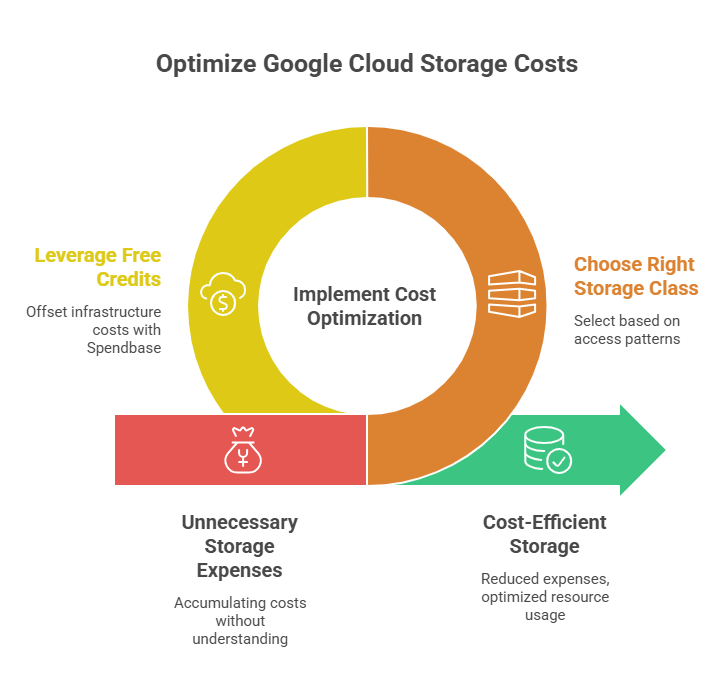
> Google Cloud Storage provides a highly durable and scalable object storage platform designed for unstructured data: backups, media assets, analytics datasets, application artifacts, etc.
> Storage costs depend heavily on access patterns and lifecycle policies, meaning that choosing the right storage class (Standard, Nearline, Coldline, or Archive) is one of the most important cost decisions.
> Beyond technical optimization, financial strategy matters. Leveraging free Google Cloud credits through Spendbase can significantly offset infrastructure costs while organizations scale storage-heavy workloads.
What Is Google Cloud Storage
Google Cloud Storage is Google Cloud’s fully managed object storage service designed to store and retrieve any amount of unstructured data.
Unlike traditional storage infrastructure that requires provisioning disks or managing file systems, GCS abstracts away infrastructure management and allows teams to store data through objects within buckets. This way, it acts as a globally distributed storage platform that efficiently eliminates traditional operational burdens.
| Traditional Storage Model | Google Cloud Storage Model |
Manual disk provisioning | Fully managed object storage |
| Fixed storage capacity | Elastic storage scaling |
| Hardware maintenance required | Infrastructure managed by Google |
| Custom replication configuration | Built-in redundancy |
| Manual backup systems | Integrated durability and lifecycle policies |
| File system management | Object-based storage model |
See how much you can save on your stack
Pick your team’s tools!
Click to select one or more tools.


What’s your company size?
Just click to select.
What’s your business email?
We'll send you calculations right away
The email is flying to your inbox!
Beyond discounts, you may qualify for up to $100K in AWS credits.

Key Google Cloud Storage Highlights
From our hands-on testing, Google Cloud Storage has several standout capabilities that make it attractive for enterprise workloads:
> Highly durable architecture. Objects are replicated across multiple physical locations, delivering 11 nines (99.999999999%) durability. Thanks to multiple layers of redundancy, there’s extremely low risk of data loss.
> Multiple storage classes. With storage tiers, you can efficiently optimize costs based on data access frequency.
> Global scalability. Storage can grow from gigabytes to exabytes without infrastructure changes.
> Integrated security and access control. Identity-based permissions, encryption, and audit logging are built into the platform.
> Deep integration with the Google Cloud ecosystem. Services like BigQuery, Dataflow, Vertex AI, Cloud Run Functions integrate directly with GCS for data pipelines and analytics – therefore, no complex data transfers or additional infrastructure in required.
Google Cloud Storage serves as a versatile object storage platform designed to handle large volumes of unstructured data across a wide range of use cases – see the breakdown of the core ones below.
The Functional Scope of Google Cloud Storage | ||
| Dimension | What GCS Handles | Typical Scenarios |
| Object storage | Store large unstructured datasets | Backups, logs, archives |
| Media storage | Deliver large media files | Video platforms, image storage |
| Data lakes | Store raw analytical data | Machine learning pipelines |
| Application assets | Store static files | Web apps, mobile apps |
| Backup & recovery | Durable backup storage | Disaster recovery |
| Data sharing | Cross-team data access | Collaboration workflows |
How Google Cloud Storage Works
At a high level, Google Cloud Storage organizes data using a simple structure, which consists of three core elements:
#1 – Projects, representing the top-level environment where billing, permissions, and resource management are handled. All storage resources exist within a specific project.
#2 – Buckets, which act as logical containers for storing data. Each bucket has a globally unique name and can contain unlimited objects. Bucket-level settings define location, storage class, lifecycle rules, and access permissions.
#3 – Objects are the actual stored files (images, datasets, logs, backups, etc.). Each object includes the file data itself along with metadata describing it.
Bucket Location Types
When creating a bucket, you must choose where the data will be stored geographically. This decision affects several aspects: latency, availability, resilience, you name it. Check out the table below to get a better perspective on the main bucket location options and their locations.
| Location Type | Description |
| Region | Data is stored in a single geographic region, best for workloads that require low latency. |
| Dual-region | Data is synchronously replicated across two regions for higher availability and resilience. |
| Multi-region | Data is distributed across multiple regions within a large geographic area. |
Google Cloud Storage Classes
Another key concept in Google Cloud Storage is the storage class. Based on this, you’ll determine how often data is expected to be accessed and how it is priced.
An important thing to keep in mind: choosing the wrong storage class can significantly increase costs. For example, if you store frequently accessed data in the Archive, you’ll end up with high retrieval fees. See the recommended storage scenarios below.
| Standard | Nearline | Coldline | Archive | |
Best For | Frequently accessed data (weekly) | Infrequently accessed data (1/month) | Rarely accessed data (1/quarter) | Long-term storage (1/year) |
Typical Use Cases | – Active datasets – Web apps – Media assets – Analytics pipelines | – Backups – Long-tail media assets – Infrequently used datasets | – Disaster recovery backups – Archived logs – Compliance data | – Regulatory archives – Historical datasets – Long-term backups |
| Storage Cost | Highest | Lower than standard | Low | Lowest |
| Retrieval Fees | None | Low | Moderate | Highest |
Key Google Cloud Storage Capabilities (And How To Maximize Them)
#1: Elastic Object Storage
Google Cloud Storage scales automatically without requiring capacity planning. This means teams can store petabytes or even exabytes of data without resizing infrastructure or migrating storage systems. Learn more about object storage in the official Google documentation.
| What GCS Handles Automatically | What Teams Must Manage |
| Storage scaling | Data architecture |
| Hardware lifecycle | Bucket organization |
| Replication | Lifecycle rules |
| Infrastructure patching | Cost monitoring |
| Storage availability | Access control |
#2: Storage Lifecycle Management
In practice, lifecycle policies are one of the most effective and low-effort strategies for controlling storage costs at scale, especially in environments where large volumes of data accumulate over time.
Storage Lifecycle Management allows organizations to automatically move data between Google Cloud Storage classes based on predefined rules (object age, last modification time, storage conditions, etc.).
Let’s take a look at the example lifecycle policy:
- Standard → Nearline after 30 days (data becomes less actively used)
- Nearline → Coldline after 90 days (data is rarely accessed)
- Coldline → Archive after 365 days (data is long-term archival)
This approach ensures that recent and frequently accessed data remains quickly available, while older or inactive data is stored at progressively lower cost. This, in turn, prevents old data from remaining indefinitely in expensive storage tiers and thus ensures long-term storage costs decrease automatically as data ages.
#3: Global Data Accessibility, Data Lakes, And Big Data Analytics
GCS is designed to support globally distributed applications and large-scale data platforms, which makes it a common foundation for data lakes and big data analytics environments.
Here’s how it ensures global data accessibility:
- Multi-region buckets – store data across multiple geographic regions simultaneously. Google automatically replicates data within a multi-region (like the US, EU, or ASIA) for faster access for users around the world.
- Cross-region replication – copies data between buckets in different regions. This improves resilience and supports disaster recovery, all while allowing applications or analytics workloads in different locations to access synchronized datasets.
- Global CDN integration – enabling frequently accessed content to be cached at edge locations worldwide. This reduces latency and improves performance for globally distributed users and applications.
#4: Strong Security & Access Control
Google Cloud Storage provides built-in security features that help organizations protect sensitive data and enforce strict access policies. This includes:
> IAM-based access control. Google Cloud IAM enables fine-grained permission management across storage resources. In doing so, it allows administrators to control access for users, groups, and service accounts through role-based policies at the project, bucket, or object levels.
> Uniform bucket-level access. Uniform bucket-level access provides centralized permission management at the bucket level. This way, it eliminates object-level ACLs and reduces the risk of misconfigured access controls.
> Encryption at rest and in transit. Google Cloud Storage automatically encrypts all stored data at rest. It also protects data in transit through secure HTTPS encryption.
> Audit logging. Audit logging records access and administrative actions related to storage resources for improved visibility into storage activity.
#5: Machine Learning and AI
Google Cloud Storage plays a critical role in supporting machine learning and AI workloads by acting as a scalable and highly durable storage layer for large datasets used throughout the AI lifecycle. Organizations can store vast volumes of structured and unstructured data (images, videos, logs, sensor data, etc.) and use them for model development, training, and deployment.
Google Cloud Storage supports AI and machine learning workflows in several ways:
- Centralized data storage for AI datasets – GCS can store large datasets used for model training, validation, and testing, including structured and unstructured data.
- Integration with AI and analytics services. Data stored in GCS can be directly used by numerous services (Vertex AI, BigQuery, Dataflow, and Dataproc, etc.) for machine learning and data processing.
- Scalable data pipelines. Engineers can build automated pipelines for data ingestion, preprocessing, feature engineering, model training, etc.
- High-throughput data access. GCS supports parallel access to datasets, thus allowing distributed compute systems to process large training datasets efficiently.
- Support for data lakes. GCS is often used as the storage layer for data lakes that collect raw and processed data for analytics and AI applications.
- MLOps and automated workflows. Integration with Google Cloud tools allows organizations to automate model retraining, data preparation, model deployment, and more.
Learn more details about Google Cloud’s AI innovations here.
#6: Object Versioning & Data Protection
Data protection is another critical capability of Google Cloud Storage. One of the most practical features for safeguarding data is object versioning, which allows multiple versions of the same object to be stored automatically.
When object versioning is enabled, every time a file is overwritten or deleted, the previous version remains stored in the bucket. This provides a safety layer that helps organizations recover data quickly without relying on external backup systems.
Object versioning offers several important benefits (to learn more, check out the official documentation):
- Recovery from accidental deletion – deleted files can be restored from previous versions stored in the bucket.
- Rollback capability – if a dataset is overwritten incorrectly, teams can revert to an earlier version.
- Protection against data corruption – if corrupted data is uploaded, a clean historical version can be recovered.
- Safer update workflows – data engineers can update datasets without risking permanent loss of earlier data.
#8: Event-Driven Workflows & Storage Automation
Modern cloud architectures increasingly rely on event-driven systems, where infrastructure automatically reacts to changes in data. Google Cloud Storage supports this model through event notifications, which allow workflows to be triggered whenever objects are created, updated, or deleted.
When specific storage events occur, GCS can automatically send notifications to other Google Cloud services, enabling automated processing pipelines and real-time data workflows.
By integrating storage events with cloud services, organizations can build fully automated data workflows. Explore common automation scenarios in the table below.
| Automation Scenario | Trigger Event | Typical Services Used | Typical Use Cases |
Cloud Functions (Serverless functions automatically process files) | Object upload, update, or deletion | ▪ Cloud Functions ▪ Cloud Run ▪ Eventarc | ▪ Image resizing ▪ File validation ▪ Metadata extraction ▪ Log processing |
Pub/Sub Pipelines (Storage events distributed to multiple subscribers) | Storage event notifications | ▪ Pub/Sub ▪ Dataflow ▪ Cloud Run | ▪ Real-time analytics ▪ Streaming pipelines ▪ Microservice triggers |
Data Processing Workflows (Pipelines transform or analyze stored data) | New dataset uploads | ▪ Dataflow ▪ Dataproc ▪ BigQuery ▪ Cloud Composer | ▪ ETL pipelines ▪ Log processing ▪ Data transformation |
AI Inference Pipelines (ML models analyze newly uploaded data) | New image, video, or document upload | ▪ Vertex AI ▪ AI APIs ▪ Dataflow ▪ Cloud Run | ▪ Image recognition ▪ Video analysis ▪ Document processing |
Storage Event Monitoring (Audit logs track storage access and configuration changes) | Object access or modification events | ▪ Cloud Logging ▪ Cloud Monitoring ▪ Security Command Center | ▪ Access auditing ▪ Anomaly detection ▪ Compliance monitoring ▪ Suspicious activity alerts |
#9: Data Transfer & Ingestion Tools
While storing data efficiently is important, organizations must also consider how data is initially transferred into cloud storage. Google Cloud provides several tools designed to simplify large-scale data ingestion and migration into Google Cloud Storage – and they are often used in combination:
- Storage Transfer Service. A managed service for transferring data from on-premise environments, HTTP endpoints, or other cloud providers such as AWS S3. It can schedule recurring transfers and automate large migrations.
- Transfer Appliance. A physical device provided by Google that organizations can use to securely move extremely large datasets (petabytes of data) into Google Cloud when network transfer would be too slow.
- gsutil and parallel uploads. The command-line tool commonly used for interacting with Google Cloud Storage. It supports parallel uploads and downloads, allowing teams to move large datasets efficiently.
Free virtual cards for non-EU residents
Open in 1 working day, issue 100 virtual cards, and get up to 1.25% cashback.
Get a free account
Google Cloud Storage Pricing Overview
Google Cloud Storage pricing is based on several usage components. This means the total cost depends on how data is stored, accessed, and transferred across the cloud environment. See the breakdown of these components, along with their estimated costs, in the table below.
| Pricing Component | Behavior | Typical Cost Range |
| Storage | Charged per GB stored | $0.020 – $0.026 / GB-month |
| Retrieval | Charged for data access in colder tiers | $0.01 – $0.05 / GB |
| Operations | API calls (Class A/B operations) | fractions of a cent |
| Network egress | Data leaving Google Cloud | $0.05 – $0.12 / GB |
| Replication | Cross-region replication | Region dependent, $0.02 – $0.08 / GB |
Storage Capacity (Primary Cost Driver)
The largest cost component in Google Cloud Storage is the total volume of stored data. Storage pricing is calculated per GB per month and varies depending on the storage class used.
With the right storage tier (based on data access frequency), you can optimize both performance and cost. See the details in the table below.
| Scenario | Recommended Strategy | Cost Risk |
| Active datasets | Standard storage | Low |
| Monthly access | Nearline storage | Low |
| Rare access backups | Coldline storage | Medium |
| Long-term archives | Archive storage | Low |
| Unknown access patterns | Start with Standard | Medium |
Data Retrieval Costs
While colder storage tiers significantly reduce storage costs, they often introduce retrieval fees when data is accessed. This means organizations should carefully match storage classes to real access patterns to avoid unexpected charges.
| Storage Class | Retrieval Cost | Typical Use Case |
| Standard | None | Active workloads |
| Nearline | Moderate | Monthly backups |
| Coldline | Higher | Rare access |
| Archive | Highest | Compliance archives |
Network Data Transfer
Another important cost component is network data transfer, especially when data leaves the storage environment. Egress charges apply when data is transferred to the internet, other regions, or external services, which can significantly impact costs for large datasets.
| Scenario | Transfer Level | Recommended Strategy |
| Same-region access | Low | Keep services in same region |
| Cross-region access | Moderate | Align storage region |
| Internet downloads | High | Use CDN where possible |
| External integrations | High | Compress data |
Common Cost Pitfalls in Google Cloud Storage
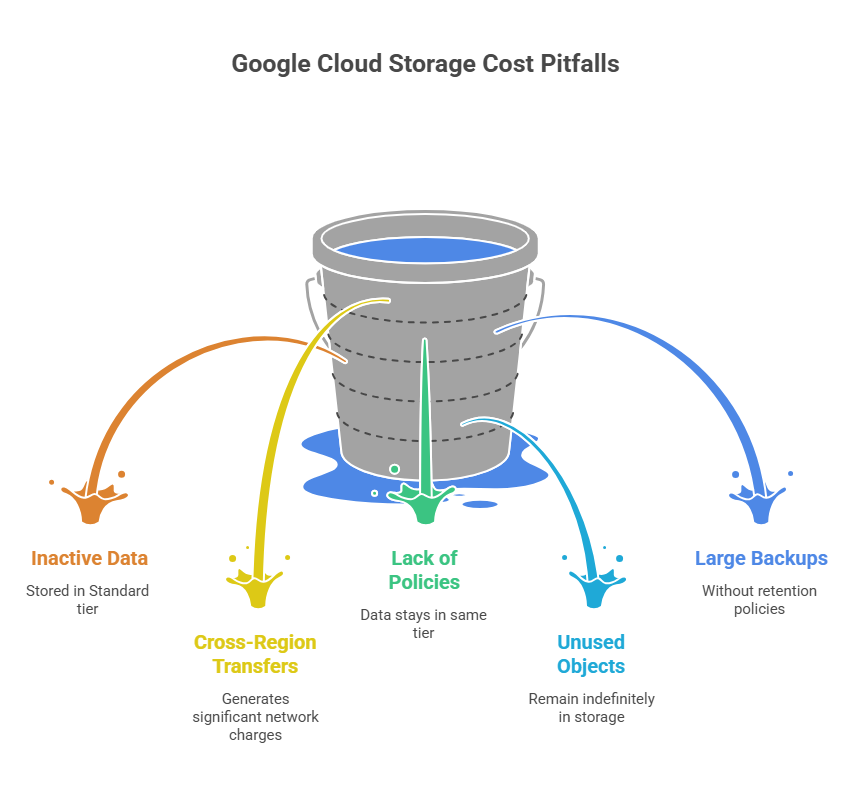
Based on our practical observations, storage inefficiencies most often stem from poor data lifecycle management. Over time, these inefficiencies silently increase monthly cloud bills. In particular, common issues include:
⚠️ Storing inactive data in the Standard tier
Rarely accessed data may remain in the Standard storage class, which is intended for active workloads. This leads to higher storage costs instead of using cheaper tiers like Nearline, Coldline, or Archive.
⚠️ Excessive cross-region transfers
Transferring data between regions can generate significant network egress charges, especially when compute services and storage are not located in the same region.
⚠️ Lack of data lifecycle policies
Without lifecycle rules, older data stays in the same storage tier instead of automatically moving to lower-cost storage classes.
⚠️ Unused objects remaining indefinitely
Temporary files, outdated datasets, or obsolete backups may remain in storage long after they are needed, which gradually increases storage costs.
⚠️ Large-scale backups without retention policies
Additionally, frequent backups without defined retention limits can accumulate over time.
Cost Optimization Strategies for Google Cloud Storage
Based on our experience, reducing GCS spending typically requires both operational adjustments and architectural improvements. This means reviewing storage architecture, data lifecycle policies, and access patterns, to name a few.
The table below highlights several practical quick wins that can help improve storage efficiency and lower GCS costs.
| Quick Wins for Google Cloud Storage Cost Optimization | |||
| Strategy | Effort | Savings | Impact Speed |
| Apply lifecycle policies | Low | High | Immediate |
| Move cold data to Coldline/Archive | Low | High | Immediate |
| Remove unused objects | Low | Medium | Fast |
| Compress large datasets | Medium | Medium | Fast |
| Monitor storage growth | Low | Medium | Ongoing |
Diving in, the following actions need to be performed:
- Apply lifecycle policies – identify inactive datasets, define rules based on object age or modification date, automatically move data between storage classes, delete temporary or outdated files;
- Move cold data to Coldline / Archive – analyze access patterns, identify rarely used datasets, move long-term backups or archives to Coldline or Archive, separate active and archival data where needed;
- Remove unused objects – scan buckets for obsolete files, remove duplicate datasets, delete outdated backups, clean up temporary or test data;
- Compress large datasets – compress files before upload, use efficient formats (GZIP, Parquet, Avro), reduce dataset sizes, combine compression with lifecycle policies.
| High-Impact Structural Optimizations | |||
| Strategy | Effort | Savings | Impact Speed |
| Redesign data retention policies | Medium | High | Gradual |
| Align storage regions with workloads | Medium | High | Fast |
| Automate lifecycle tiering | Medium | Very high | Fast |
| Optimize data access patterns | High | High | Gradual |
| Continuous storage monitoring | Medium | High | Ongoing |
For more advanced, long-term optimization, ensure you follow these best practices:
- Redesign data retention policies – define clear retention periods, remove outdated backups, enforce automatic deletion rules, align retention policies with compliance and operational needs;
- Align storage regions with workloads – store data close to compute resources, minimize cross-region transfers, reduce latency, avoid unnecessary network egress costs;
- Automate lifecycle tiering – configure lifecycle rules to move data between storage classes, transition inactive data to cheaper tiers, automate long-term archival, regularly review lifecycle policies;
- Optimize data access patterns – analyze access frequency, separate hot and cold datasets, reduce unnecessary reads, redesign workflows to minimize repeated data retrieval;
- Continuous storage monitoring – track storage usage trends, monitor bucket activity and access patterns, detect cost anomalies early, regularly review storage efficiency and optimization opportunities.
Getting Started With Google Cloud Storage
Before jumping into Google Cloud Storage configuration, the core Google Cloud platform environment must first be properly set up: establishing the organization structure, assigning administrators, connecting billing accounts to manage resources across projects, etc. Learn more details in the official guide. From there, follow the step-by-step setup that we’ve outlined below.
Step 1: Define Storage Access Patterns
First and foremost, before creating storage buckets, it is important to understand how the data will actually be used over time. Remember: since different datasets have very different access patterns. Specifically, key factors to evaluate include:
- Frequency of access. Determine whether the data will be accessed frequently, occasionally, or rarely. (typically, active datasets belong in Standard storage, while infrequently accessed data may be better suited for Nearline, Coldline, or Archive tiers).
- Retention duration. Identify how long the data must be stored. For example, temporary datasets may only need short-term storage, compliance or backup data may require long-term retention, and so on.
- Latency requirements. Some applications require immediate access to data (web & mobile apps, real-time analytics, AI inference systems, streaming platforms, etc.) – consider whether your use case falls into this category or can tolerate higher retrieval times.
Step 2: Choose Storage Location
Depending on the use case, Google Cloud Storage offers several location options designed for different workload needs:
- Regional storage – best suited for workloads where compute resources and users are in the same region. It provides low latency and avoids cross-region transfer costs, making it ideal for regional applications and analytics pipelines.
- Dual-region storage – perfect for workloads that require high availability and disaster resilience across two regions. By replicating data between paired regions, it’s well-suited for business-critical systems and backups.
- Multi-region storage – a great fit for globally distributed applications. In this case, data is stored across multiple regions with faster access for users worldwide.
Note that choosing the wrong location can introduce unnecessary latency or generate additional network transfer charges when data moves between regions – therefore, select wisely.
Step 3: Implement Lifecycle Policies
With this step, organizations can define rules that automatically manage objects over time based on several conditions such as object age, last modification date, or storage duration.
From our experience, lifecycle management is one of the most effective ways to automatically control long-term storage costs. As datasets age, they often become less frequently accessed, but without automation they may remain in expensive storage tiers indefinitely.
Lifecycle policies allow organizations to define rules that automatically manage objects over time based on several conditions:
- Object age (for example: move objects from Standard to Nearline after 30 days and delete them after 365 days);
- Last modification date (for example: move files that haven’t been modified for 90 days to Coldline storage);
- Storage duration (for example: after 180 days in Nearline, automatically move the object to Archive storage for long-term retention.)
Step 4: Monitor Storage Growth
Monitoring key storage metrics helps teams identify inefficiencies early and make adjustments before costs escalate. Important metrics to track include:
- Bucket size trends – they can reveal unexpected data accumulation;
- Object count growth – a rapid increase in the number of stored objects may indicate excessive temporary files or pipeline outputs;
- Access frequency – understanding how often objects are accessed helps validate whether the current storage class is appropriate;
- Retrieval rates – high retrieval activity from cold storage tiers may indicate that data has been placed in the wrong storage class.
Step-by-Step Google Cloud Storage Setup & Governance Checklist |
| 1. Access Pattern Identification |
| ✅ Identify frequently accessed vs. archival datasets ✅ Estimate expected access frequency (daily, monthly, yearly) ✅ Determine data retention duration for each dataset ✅ Define latency or performance requirements |
| 2. Storage Location Strategy |
| ✅ Align storage location with compute workloads ✅ Determine whether regional, dual-region, or multi-region storage is needed ✅ Evaluate redundancy and disaster recovery requirements ✅ Consider potential cross-region transfer costs |
| 3. Lifecycle Policy Governance |
| ✅ Define rules for transitioning data between storage classes ✅ Configure automatic archival for aging datasets ✅ Set expiration policies for temporary or obsolete objects ✅ Validate lifecycle automation before deploying at scale |
| 4. Storage Monitoring & Optimization |
| ✅ Track bucket size growth trends ✅ Monitor object count changes over time ✅ Analyze data access frequency patterns ✅ Detect unusual retrieval rates from cold storage tiers ✅ Identify inefficient storage class usage early |

We can unlock discounts on 10,000+ tools you already use.
Spendbase as a Financial Advantage for Google Cloud Storage
Optimizing Google Cloud Storage isn’t only about architecture. First and foremost, it also requires a clear financial strategy to manage cloud spending as infrastructure and data volumes expand.
This is where Spendbase adds a unique value. By helping companies secure Google Cloud credits, Spendbase enables organizations to offset storage and infrastructure costs during scaling phases.
Overall, companies can unlock up to $300,000 in credits across GCP, AWS, and Azure. These credits can significantly reduce early-stage infrastructure costs and allow teams to experiment, build, and scale cloud-native solutions more confidently.


Get discounts on your team’s favorite apps
Find deals for 10%, 30%, or even 70% off in our discount marketplace.
Check Discounts